
How Can Tally Prime Shortcut Keys Make Accounting Faster and Easier?

Speed and accuracy are keys in day-to-day accounting work. No matter if you are a CA professional, accountant, tax consultant, or business owner, repeatedly clicking menus with a mouse can become a tedious task and cause extra effort while entering vouchers. Tally Prime shortcut keys can be a boon in this scenario.
If you know commonly used keyboard commands for Tally, you will be able to create vouchers and reports, change modes and masters, and do other accounting tasks at tremendous speed. A handy Tally Prime shortcut key list can save you from repetitive clicking and help you work faster and more efficiently during heavy times like month-end closing, GST filing, audits, and the financial reporting cycles.
For professionals using Tally Prime on Cloud, solutions such as TallyStack can provide a flexible environment to access Tally while continuing to use familiar keyboard shortcuts for everyday accounting tasks.
We explain the most useful Tally keyboard shortcuts, their use, real-life examples of their use, and which keys each Tally professional should memorize.
The Importance of Tally Prime Shortcut Keys for Faster Accounting Work
Tally Prime shortcut keys allow users to quickly access commonly used accounting tasks, vouchers, reports, and settings using keyboard commands without going through the menu options each time.
For most businesses and accounting professionals working with hundreds of transactions, the seconds saved on every entry add up to significant productivity.
Primary advantages of using shortcut keys in Tally
By using Tally shortcuts, you can:
Quickly enter accounting vouchers
Reduce mouse reliance
Access frequently used voucher types in less time
Switch functions in the accounting menu
Open company and configuration options quickly
Alter ledgers and other masters with ease
Bulk enter data for better productivity
Make a more consistent accounting flow
Cutting down on needless menu-to-menu navigation is a big help.
Say an accountant is inputting 200 sales vouchers daily. If the accountant can use the shortcut to the sales voucher, it’s much faster than manually selecting the voucher from the menu for every single entry.
Pro tip: The most “valuable” shortcuts aren’t always the ones you break out once in a while. The best shortcuts to learn first are for tasks you perform dozens (or hundreds) of times each day.
Tally Prime Shortcut Keys: Direct Response
For those who came here for just a straightforward answer to their question, the most popular Tally Prime shortcut keys are:
F1: Select Company.
F2: Change Date.
F3: Select Company.
Alt + F3 – Company-related options.
F4: Contra voucher
F5: Payment voucher
F6: Receipt voucher
F7: Journal voucher
F8: Sales voucher
F9: Purchase voucher
F10: Other voucher functions
Ctrl + Enter: Alter the selected master or ledger.
Alt + C: Create a master while entering a voucher.
Some Tally function keys may function differently depending on the screen, context, enabled features, and Tally Prime version. Therefore, users should always pay attention to the usually displayed context-sensitive shortcut guidance within their Tally Prime screen.
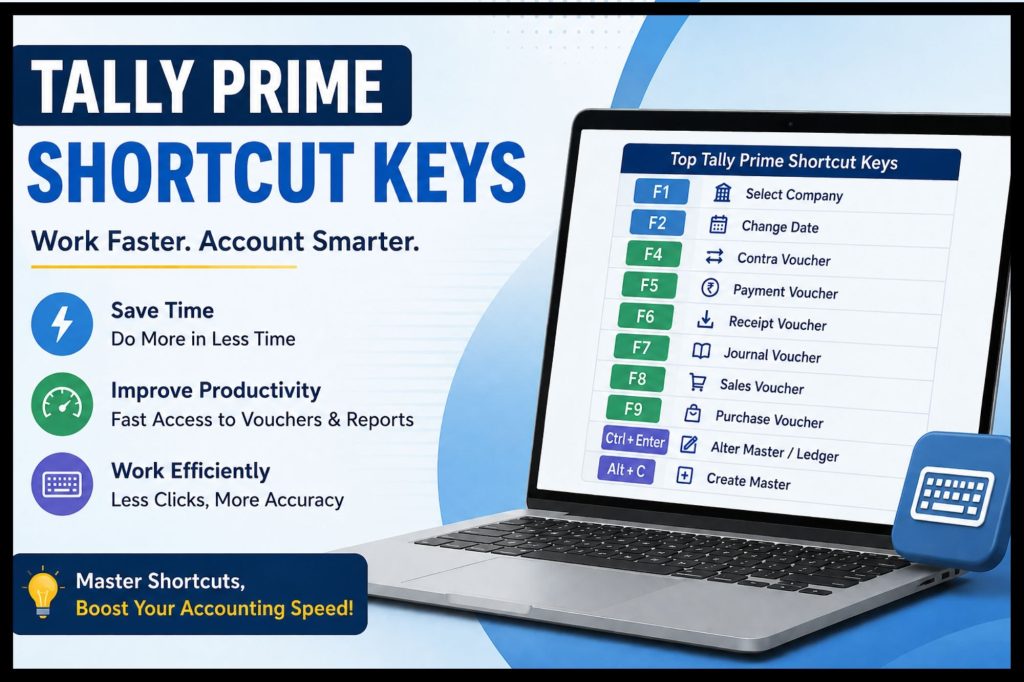
List of Tally Prime Shortcut Keys for Every Accountant to Know
Common Tally Shortcut Keys F1-F12
The most used Tally shortcut keys are F1-F12, as using these functions provides quick access to various company, date, voucher type, and configuration-related functions.
F1: Company Selection Related Tally Shortcut Key
F1: Select Company
Most of us use F1 for company selection-related functions.
It is helpful for:
Accountant who works for different clients
CA firms that work on multiple companies
Businesses that have multiple companies
Any other person who keeps on changing company data
Rather than going through the menu every time, the user can reach the relevant company selection-related function directly.
F2: Changing Date. F2 is one of the most vital Tally keys, and accounting functions for normal accounting purposes include the following:
Backdated voucher entry
Advance transaction entry
Pre-dated bank entry
Previously accounting period adjustment entry
Practical Scenario
For instance, the user’s current working date is 22nd August. However, an invoice for the date 20th August has to be entered.
Without having to select the date manually, the user can use the respective date shortcut and add the date first. Only after that can the voucher entry be passed with ease. This saves time for backdated data entry and makes it easier for accountants to ensure the proper chronology.
What is the function of Alt + F3 in Tally?
I keep getting asked, “What is Alt + F3 in Tally?”
In Tally, Alt + F3 is commonly used for company-related functions/options. Based on your current screen and the Tally version you are using, Alt+F3 can give you quick access to company management activities.
When to use Alt + F3?
Alt + F3 is used when working with
Company information
Company selection
Company configuration
Other company-level options
If you’re a professional handling accounting data for multiple organizations, knowing what Alt + F3 in Tally can help you navigate company-related functions faster.
Pro tip: Keyboard shortcuts in Tally are context-oriented. Always check the action displayed on your current screen before using a shortcut to perform an important accounting action.
Tally Voucher Keyboard Shortcuts
Knowing shortcuts for voucher entry can greatly boost productivity.
What is the Sales Voucher Shortcut Key in Tally?
If you’re asking, “What is the shortcut key for a sales voucher in Tally?” here’s the standard answer:
F8: Sales Voucher
This means that you can use F8 to quickly access the Sales Voucher.
Example
Picture yourself entering invoices for 50 customers.
Without shortcuts, you would repeatedly
Navigate to the voucher menu.
Look for sales.
Select the form.
Enter your data.
With the right shortcut, you can reach the sales voucher directly. From there, you’re focused entirely on entering the following:
Customer.
Invoice number.
Item/service.
Qty.
Rate.
Tax.
Ledger.
That’s just one reason Tally Prime shortcut keys are so useful for accounting work that requires high-volume data entry.
What is the quick key for a journal voucher?
For anyone wondering which key is used to open the Journal Voucher in Tally Prime, simply press F7.
F7 :Journal Voucher
Journal vouchers are frequently used for accounting adjustments and entries such as the following:
Depreciation.
Provisions.
Outstanding expenses.
Accrued income.
Adjustment entries.
Transfer entries.
Practical example
Suppose rent for the month is payable but has not yet been paid. An accountant may need to pass an adjustment entry through a journal voucher.
Knowing the shortcut helps you access the relevant voucher quickly and continue working without unnecessary menu navigation.
Payment Voucher Shortcut Key
F5: Payment Voucher
The payment voucher is mostly used to record the following:
1. Supplier payments.
2. Rent
3. Salary
4. Utility
5. Expense payments, etc.
For accountants who process a high volume of payments, direct access to the payment voucher can make daily bookkeeping tasks much faster.
Receipt Voucher Shortcut Key
F6:Receipt Voucher
The receipt voucher is mostly used to record incoming payments. For example:
1. Customer receipts
2. Cash received
3. Bank collection
4. Advance receipts, etc.
Quick access is especially useful for companies with huge volumes of customer receipts to process.
In Tally, when users enter transactions related to purchase returns, adjustments, or debit notes, they often search for the debit note shortcut key.
Depending on what voucher type is configured and what environment of Tally Prime you are working in, the following shortcut may or may not work for you. This is because the debit note needs to be enabled in your company, and only then will the shortcut, as per your configuration, show in Tally Prime.
Instead of memorizing a key that may or may not work, it may be safer to
Enable the right voucher type
Be clear about the voucher name and why it is used
See what shortcut Tally Prime is showing you
Practice using it in the right accounting situation
That way, you don’t just become faster. You also become more accurate in your accounting!
Shortcut Keys for Tally Ledger: Faster Data Entry with Shortcuts
Ctrl + Enter – Alter Selected Ledger or Master
One of the really handy Tally ledger shortcut keys is Ctrl + Enter.
Depending on context, it can allow users to quickly alter/modify a currently selected master.
Use case
Suppose you’re entering a sales voucher and realize that your customer’s:
GST details need to be corrected.
The address needs to be updated.
The credit period needs to be changed.
Ledger information needs to be corrected.
Instead of moving out of flow and searching for that ledger separately, the relevant alteration shortcut can help you open the selected master directly.
This is a great use case for how altering shortcut keys in Tally can help you reduce breaks in data entry.
Alt + C – Make a Ledger or Master During Entry
Another really helpful shortcut is Alt + C, which lets users make a needed master when they’re working, based on the field and situation.
Example
You are entering a voucher and require a customer ledger that is not created yet.
Instead of:
Canceling or leaving the voucher.
Going to the ledger creation screen.
Making the ledger.
Coming back to the voucher.
You can make the needed master right from the field in the entry screen.
For accountants who are regularly entering new customer, supplier, stock, or other records, this is a huge time saver.
What is the shortcut key for change mode in a voucher?
Depending on the type of voucher, features enabled, and the screen you are in, changing the mode or behavior of a voucher works. The best way to follow is the shortcut guidance displayed within the voucher in use.
Why it’s important
Tally is context-sensitive. A key combination on one screen can behave differently on another screen.
Key Takeaway for Accounting Professionals:
Check the shortcut available on the screen.
Check the type of voucher selected.
Never change the modes without cross-verifying the impact on accounting
Practice using the shortcut keys if you have not used them earlier.
This will help a beginner in learning how to use shortcut keys in Tally.
The Essential Shortcut Keys in Tally for Daily Work
If you’re not looking to learn every single command off by heart right away, try focusing on the shortcuts that will help you with your daily accounting work the most.
Shortcut keys recommended for beginners
You can start off by learning:
F2: For date-related functions.
F4: For contra voucher.
F5: For payment voucher.
F6: For receipt voucher.
F7: For journal voucher.
F8: For sales voucher.
F9: For purchase voucher.
Ctrl + Enter: To alter the selected master.
Alt + C: To create a master during entry.
Remember, even just these few important shortcut keys will get you through a lot of the accounting work you’ll be doing every day.
Shortcuts to learn if you’re a Tally professional
Everyone learns shortcuts based on what they do every day, and this is what matters to expertise.
So, if you’re a Tally pro, learn shortcuts to the transactions you frequently use.
These include:
The commonly used vouchers
Ledger editing
Master creation
Date changing
Company switching
Report navigation
Voucher mode switching
Productivity for experts
Learn all Tally shortcut keys in a day? No.
Instead,
Week 1: Vouchers
Week 2: Master & Ledger
Week 3: Company & Date
Week 4: Reports & Navigation
Building practical muscle memory in this way is far more effective than reading an entire Tally Prime shortcut keys list.
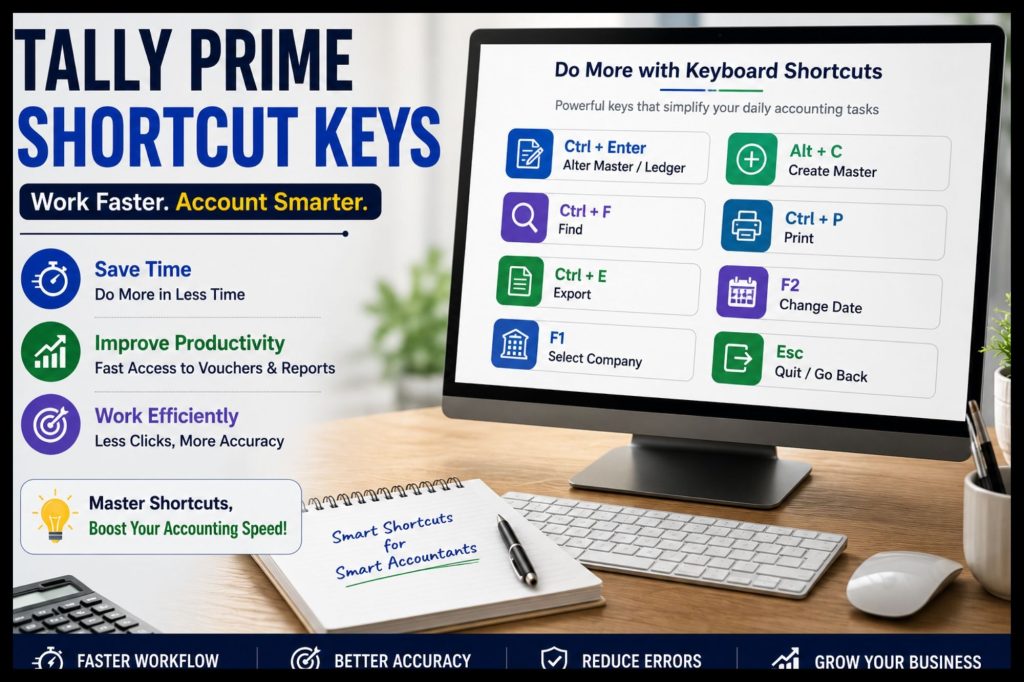
How accounting shortcut keys in Tally Prime boost productivity
1. Faster voucher entries
The most significant benefit is less time spent on navigation.
If you know the voucher-at-hand shortcut ahead of time, you can head straight into the accounting operation.
Example
A professional managing:
100 purchase vouchers.
75 sales vouchers.
30 receipt vouchers.
25 payment vouchers.
can save hundreds of pointless mouse clicks by utilizing the right Tally shortcuts for keyboard.
2. Better Concentration While Paying Attention
Switching from the mouse to the keyboard interrupts one’s concentration. Keyboard shortcuts will help expert, concentrated users to:
Transaction particulars.
The accuracy of the debit or credit.
GST implications.
Narration.
Invoice particulars.
And enjoy a more seamless accounting experience.
3. Faster Month-End Management
Several tasks are performed by the accountant during a month-end, such as:
Current balances.
Bank reconciliation.
Depreciation.
Provisions.
Verification of sales.
Verification of purchases.
GST reconciliation.
Corrections are essential during this time. Thus, every improvement in navigation speed will come in handy.
4. Increased Productivity for Accounting Firms
CA tax and accounting firms often work across several client companies.
A team that understands frequently used Tally function keys can create a more standardized way of working.
This can help with:
Quickening the integration of junior staff.
Standardized accounting processes.
Increased productivity.
Less time spent digging through menus
Tally Accounting Tips: Speed Must Not Affect Accuracy
It’s great to learn shortcuts, but one can’t afford to account fast unless the information is correct.
Follow these tips
Identify the voucher category
Before entering a voucher, identify if it is a:
Sales
Purchase
Payment
Receipt
Journal
Contra
Debit Note
Credit Note
opener shortcut, the wrong voucher can become deposited in the wrong place and cause accounting errors
Check the date
Whenever you enter a backdated voucher, you should be sure about the active date
Check ledgers thoroughly
It’s easy to lose sight of similar ledger names. Make sure you are using the:
Customer
Supplier
Expense ledger
Tax ledger
Bank account
Use narration where it applies
Shortcuts can help speed things up, but good narration will help with audit trails and simplify follow-up.
Rule of thumb: Get accuracy into work first; then use shortcuts to speed up the process.
Tally Prime shortcut keys vs mouse navigation
| Task | Mouse-Based Workflow | Shortcut-Based Workflow |
| Open Sales voucher | Navigate through menus | Direct voucher shortcut |
| Change working date | Navigate to date option | Use the date shortcut |
| Alter selected ledger | Exit and locate the ledger. | Use the relevant alteration shortcut |
| Create a missing ledger | Open creation screen separately | Create from the relevant context where supported |
| Enter repetitive vouchers | Repeat menu navigation | Use keyboard-driven workflow |
The benefit provided by Tally Prime shortcut keys is not in changing the accounting principles; the benefit is in reducing the time needed to get to the proper accounting function.
A Simple Day-to-Day Workflow for Tally Professionals
It is a real workflow for experts as well as for beginners.
Step 1: Set the proper day
Check the accounting day before entering data.
Carefully use the corresponding day to record prior- or future-dated transactions.
Step 2: Choose an appropriate voucher
Use Tally’s appropriate shortcut key for Sales, Purchase, Payment, Receipt, or Journal Entry
Step 3: Create missing masters when required
If a ledger or a required master is not present, then use the appropriate creation feature & context-based creation to keep the flow of entry.
Step-4: Alter the information immediately if found required
If you find any error in a selected master, then use the appropriate alteration function if supported
Step-5: Verify before save
With the following flow, we combine the efficiency of Tally shortcuts and the discipline of proper accounting.
Key Highlights
Key lessons on Tally Prime shortcut keys are easy to get:
Learn shortcuts that fit into your daily workflow.
Start with voucher shortcuts that you use often.
Use shortcuts to reduce navigation, not to make hasty accounting decisions.
Practice creating and modifying ledger shortcuts.
Confirm context-sensitive actions before using a new key.
Always make accounting decisions first before speed.
An accountant trained well need not know every single command. The real idea is to be aware of the Tally Prime shortcut key list that saves most time in daily use.
Conclusion
Tally Prime shortcut keys can make accounting simpler, easier, and faster by cutting down repetitive clicks and enabling you to reach frequently used functions quickly. From sales & purchase vouchers to payments, receipts, journal entries, and ledger management, knowing the right Tally Prime shortcut keys will facilitate saving your time in everyday accounting processes.
For businesses & accountants with remote Tally access needs, coupling these shortcuts with Tally Prime on Cloud will give you a more efficient and flexible accounting experience. With Tally on Cloud, you can be in another place and yet be able to access your accounting environment using the native Tally Prime interface along with its shortcuts.
With Tally Stack, we give Tally Prime on-cloud solutions to facilitate businesses & accountants working with Tally in a more efficient and flexible way. Use the right Tally skills along with a reliable cloud environment to get faster and more flexible accounting.
Frequently Asked Questions of Tally Prime Shortcut Keys
1. What are Tally Prime shortcut keys?
Tally Prime shortcut keys are computer key combinations that can be used to perform accounting processes, voucher types, reports, company options, etc. Therefore, they decrease repetitive traversal of menus and can speed up accounting tasks.
2. What is the shortcut key for a sales voucher in Tally?
Sales voucher shortcut key – F8. The shortcut key directly accessing the Sales voucher function will facilitate invoice entry and sales transaction entry in Tally Prime.
3. What is the shortcut key for a journal voucher in Tally?
Journal voucher shortcut key – F7. Journal vouchers are used for making adjustments like depreciation, provisions, and accrued expenses.
4. What is Alt + F3 in Tally?
Alt + F3 is related to options under the ‘company’ menu. The options will differ based on the screen you are currently in and the Tally version. Ascertain the relevant instructions displayed in Tally Prime.
5. What are the most useful Tally hotkeys for new Tally users?
New Tally users can first learn the hotkeys for switching dates, entering frequently used vouchers, creating and editing masters and ledgers: F2, F4, F5, F6, F7, F8, F9, Ctrl + Enter, Alt + C. These hotkeys are quite useful for everyday business accounting
What is the hotkey for a debit note in Tally?
The shortcut key for a debit note can vary depending on your configured voucher type, features enabled, and your Tally Prime context. If the Debit Note voucher is enabled, check the shortcut key in the Tally screen you are working in.
What are the F1 to F12 shortcut keys in Tally?
The various types of functions that the function keys F1 to F12 can access depend on the screen you are in in Tally Prime. Certain common functions include company functions related to the date, vouchers, or other accounting tasks.
Can a shortcut key affect the accuracy of accounting?
Shortcut keys allow for a more efficient workflow and can speed up processes. But shortcut keys will not necessarily affect your accuracy; accuracy is affected by how you select your voucher types, dates, ledgers, amounts, charging of tax, etc.
6. How do I use the Debit Note shortcut key in Tally?
Depending on the voucher type attribute set, enabled feature set, and context within Tally Prime, the Debit Note shortcut may vary. Make sure that voucher type “Debit Note” is enabled and check what shortcut the button says has been assigned to it on your current active Tally Prime screen.
7. What do the Tally shortcut keys F1 to F12 do?
The F1 to F12 keys are assigned to various functions depending on where one is in Tally Prime. For example, company setup, new date mode, some vouchers, and many other functions.
8. Will using shortcut keys make accounting more accurate?
As opposed to speeding up your work, shortcut keys are not intended to increase the accuracy of your work. That said, shortcuts save work by avoiding many clicks and therefore can help experienced users keep a consistent process. Accuracy depends mainly on making the correct entries for voucher type, date, ledgers, amounts, and taxes.